
Zoom Selected
Zoom Selected provides smart, context-aware zooming in Revit. When elements are selected, it zooms to frame them with appropriate padding. When nothing is selected, it zooms to fit all visible content, in absence of an ative section box. This eliminates manual pan and zoom operations when navigating to specific elements.
Getting Started
Section titled “Getting Started”Find Zoom Selected on the Amorphous ribbon tab in the View Tools panel.
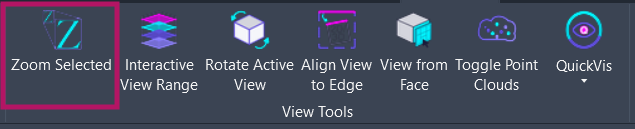
The button is always enabled and adapts its behavior based on the current selection and view type.
Features
Section titled “Features”- Smart selection zoom - Instantly centers and zooms to perfectly frame all your selected elements
- Section box awareness - In 3D views with an active section box and no selection, zooms to the section box bounds
- Zoom to extent - When nothing is selected (and no section box), zooms to show all visible elements
- Multi-view support - Works with 3D views, floor plans, sections, and elevations with view-type-specific handling
- Adaptive padding - Applies different padding amounts for 2D vs 3D views for optimal visibility
How to Use
Section titled “How to Use”Basic Workflow
Section titled “Basic Workflow”- Select elements (optional) - Pick one or more elements in any view
- Click “Zoom Selected” on the ribbon
- View automatically adjusts based on context
Zoom Behavior
Section titled “Zoom Behavior”The tool adapts to your current situation:
| Context | Behavior |
|---|---|
| Elements selected | Zooms to fit all selected elements with padding |
| No selection + 3D view with section box | Zooms to the active section box bounds |
| No selection + other views | Zooms to fit all visible elements (zoom extent) |
Working with Selected Elements
Section titled “Working with Selected Elements”When you have elements selected, the tool:
- Calculates the combined bounding box of all selected elements
- Adds appropriate padding based on view type
- Zooms the view to frame the combined area
Working with Section Boxes
Section titled “Working with Section Boxes”In 3D views, when no elements are selected and a section box is active:
- Ensure nothing is selected - Clear your selection
- Activate the section box - The view must have Section Box enabled in view properties
- Click “Zoom Selected”
- View zooms to frame the section box bounds
This is useful after adjusting section box bounds to quickly frame the visible content.
Zoom to Extent
Section titled “Zoom to Extent”When nothing is selected and no section box is active:
- Clear your selection (or start with nothing selected)
- Click “Zoom Selected”
- View zooms to show all visible elements
This provides a quick way to reset your view to show everything.
Supported View Types
Section titled “Supported View Types”| View Type | Behavior |
|---|---|
| 3D Views | Full spatial zoom using X, Y, Z coordinates; section box detection |
| Floor Plans | 2D zoom using X, Y coordinates at view level elevation |
| Sections | 2D zoom using X, Y coordinates |
| Elevations | 2D zoom using X, Y coordinates |
Use Cases
Section titled “Use Cases”| Scenario | Description |
|---|---|
| Element inspection | Quickly navigate to a specific element for detailed review |
| Coordination review | Select elements across different systems to view them together |
| Section box navigation | Frame active section box content after adjusting bounds |
| Model exploration | Reset view to see all visible content |
| Quality control | Navigate to flagged elements during model review |
| Schedule coordination | Find elements after selecting from schedules |
Options & Settings
Section titled “Options & Settings”Zoom Selected operates automatically without user configuration. The following behaviors are built-in:
| Behavior | Value |
|---|---|
| 3D view padding | 1.0 feet around the combined bounding box |
| 2D view padding | 0.5 feet around the combined bounding box |
| Section box padding | 1.0 feet around section box bounds |
| Invalid element handling | Elements with non-finite bounding boxes are automatically skipped |
Tips & Best Practices
Section titled “Tips & Best Practices”- Assign a keyboard shortcut for rapid navigation - this is one of the most useful shortcuts you can set up
- Pair with Smart Selection - Use Smart Selection to find elements, then Zoom Selected to view them
- Section box workflow - After adjusting a section box, click Zoom Selected (with nothing selected) to frame the new bounds
- Schedule navigation - Select elements from a schedule, then use Zoom Selected to find them in the model
- Check your selection - If the zoom result is unexpected, verify which elements are selected (some may be far from others)
Limitations
Section titled “Limitations”| Limitation | Details |
|---|---|
| View must be open | The target view must be open and visible as a tab for zooming to work |
| Element visibility | Elements must have a valid bounding box; hidden or filtered elements may not contribute to zoom bounds |
| Sheet views | Not designed for sheet views; works best with model views |
| Linked elements | Bounding box calculation may vary for linked model elements |
Troubleshooting
Section titled “Troubleshooting”Zoom seems to have no effect
Section titled “Zoom seems to have no effect”The selected elements may already be fully visible in the current view bounds. Try selecting elements that are currently outside the visible area.
Unexpected zoom area
Section titled “Unexpected zoom area”Check if any selected elements are far from the others. The zoom encompasses ALL selected elements, so one distant element can significantly affect the zoom level.
3D view not framing correctly
Section titled “3D view not framing correctly”- Ensure the 3D view is not locked or constrained
- Try toggling the section box if the view has one
- Check if the section box bounds are as expected
Some elements not included in zoom
Section titled “Some elements not included in zoom”Some elements may not have visible bounding boxes in certain views:
- Reference planes
- Scope boxes
- Elements hidden by view filters or visibility settings
- Elements with no geometry representation
Related Tools
Section titled “Related Tools”- Smart Selection - Select similar elements, then zoom to view them
- Section Box Manager - Save and restore section box states
- Smart Section Box - Create section boxes around selected elements
- Interactive View Range - Adjust view range in plan views
- Color Tools - Apply color overrides to selected elements