

Color by Filter
Color by Filter applies temporary color overrides to elements in the active view based on model properties. Use it to visualize categories, systems, worksets, levels, phases, or connected MEP runs during coordination, QA review, and design discussions.
Getting Started
Section titled “Getting Started”Find Color by Filter on the Amorphous ribbon tab in the Graphics panel.
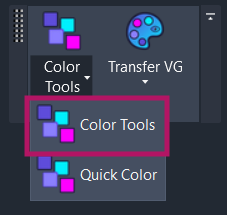
The split button provides two options:
- Color by Filter - Opens the modeless color override dialog
- Quick Color - Opens a radial marking menu for rapid color assignment
Features
Section titled “Features”- Multiple colorization modes - Color by Category, Type, Family, Workset, Phase, Level, MEP System, or Connected Run
- Category override modes - Choose fast V/G category overrides or precise per-element overrides
- Adjustable transparency - Apply transparency from 0% to 100% with quick preset buttons
- View cleanup actions - Clear overrides from selected elements or from the entire active view
- Keyboard shortcuts - Use single-key shortcuts while the dialog has focus
- Session memory - Dialog position, transparency, and selected options persist during the Revit session
- Modeless operation - Keep the dialog open while you continue working in Revit
How to Use
Section titled “How to Use”Basic Workflow
Section titled “Basic Workflow”- Open the target view in Revit
- Click Color by Filter on the ribbon
- Choose a colorization mode
- Adjust transparency or advanced settings if needed
- Click Apply or press
Enter - Review the color overrides in the active view
User Interface
Section titled “User Interface”Main Dialog
Section titled “Main Dialog”| Element | Description |
|---|---|
| Mode chips | Choose the property used to group and color elements |
| Clear Selected | Removes color overrides from the current selection |
| Clear All | Removes Color by Filter overrides from the active view |
| Transparency slider | Sets override transparency from 0% to 100% |
| Quick presets | Applies common transparency values |
| Settings | Opens advanced color and override behavior options |
| Apply | Runs the selected colorization mode |
Colored View Result
Section titled “Colored View Result”The result is applied to the active view only. Use Clear Selected or Clear All when the colors were only temporary review markup.
Colorization Modes
Section titled “Colorization Modes”| Mode | Hotkey | Description |
|---|---|---|
| Category | C | Colors elements by Revit category |
| Type | T | Colors elements by element type |
| Family | F | Colors elements by family |
| Workset | W | Colors elements by workset assignment |
| Phase | P | Colors elements by Phase Created or Phase Demolished |
| Level | L | Colors elements by associated level |
| MEP System | M | Colors elements by MEP system classification, type, or name |
| Connected Run | N | Colors connected duct, pipe, conduit, or all-MEP runs |
Phase Options
Section titled “Phase Options”Click Phase to choose between:
| Option | Description |
|---|---|
| Phase Created | Groups elements by their creation phase |
| Phase Demolished | Groups elements by their demolition phase |
MEP System Options
Section titled “MEP System Options”Click MEP System to choose between:
| Option | Description |
|---|---|
| Classification | Groups by system classification |
| Type | Groups by system type definition |
| Name | Groups by individual system name |
Connected Run Options
Section titled “Connected Run Options”Click Connected Run to choose between:
| Option | Description |
|---|---|
| All MEP | Colors all supported connected MEP elements |
| Ducts Only | Colors connected duct runs |
| Pipes Only | Colors connected pipe runs |
| Conduits Only | Colors connected conduit runs |
Clearing Overrides
Section titled “Clearing Overrides”| Button | Hotkey | Action |
|---|---|---|
| Clear Selected | S | Removes color overrides from the currently selected elements |
| Clear All | R | Removes all Color by Filter overrides in the active view |
Settings
Section titled “Settings”| Setting | Description | Default |
|---|---|---|
| Category Mode | V/G Category for speed, or Per Element for precise overrides | V/G Category |
| Transparency | Override transparency from 0% to 100% | 0% |
| Phase Mode | Phase Created or Phase Demolished | Created |
| MEP System Group By | Classification, Type, or Name | Name |
| Connected Run Scope | All MEP, Ducts Only, Pipes Only, or Conduits Only | All MEP |
Keyboard Shortcuts
Section titled “Keyboard Shortcuts”When the dialog has focus, these shortcuts are available:
| Key | Action |
|---|---|
C | Select Category mode |
T | Select Type mode |
F | Select Family mode |
W | Select Workset mode |
P | Select Phase mode |
L | Select Level mode |
M | Select MEP System mode |
N | Select Connected Run mode |
S | Clear Selected |
R | Clear All |
Enter | Apply |
Escape | Close dialog |
Use Cases
Section titled “Use Cases”| Scenario | Recommended Approach |
|---|---|
| Coordination meeting | Color by Workset, Level, or MEP System to explain scope and ownership |
| MEP design review | Use Connected Run or MEP System to trace duct, pipe, or conduit paths |
| Phase review | Color by Phase Created or Phase Demolished to check phasing |
| View markup | Use Color by Filter with Quick Color for faster review sessions |
Quick Markup
Section titled “Quick Markup”Use Quick Color during design reviews to rapidly mark selected elements for discussion, issue tracking, or QA/QC status.
Tips & Best Practices
Section titled “Tips & Best Practices”- Use V/G Category mode first for the best performance on large views
- Switch to Per Element mode when elements in the same category need different colors
- Use smaller scopes when possible by working in focused views
- Clear overrides before exporting views if the colors were only temporary review markup
- Assign a Revit shortcut to Color by Filter for repeated coordination workflows
Limitations
Section titled “Limitations”| Limitation | Details |
|---|---|
| Active view only | Overrides apply to the active view |
| Workset coloring | Workset mode requires a workshared project |
| Per-element performance | Per-element mode can be slower on large views |
| MEP System coloring | Conduits do not have meaningful system types; use Connected Run for conduits |
| View template control | A view template may block graphic override changes |
Troubleshooting
Section titled “Troubleshooting”Colors do not appear
Section titled “Colors do not appear”Possible causes:
- A view template controls graphic overrides
- Another view override is taking priority
- The selected mode does not apply to elements visible in the current view
Solution: Check the active view template and graphic override settings, then try a simpler mode such as Category.
Workset option is unavailable
Section titled “Workset option is unavailable”Cause: The project is not workshared.
Solution: Enable worksharing in the project before using workset-based coloring.
Connected Run shows unexpected colors
Section titled “Connected Run shows unexpected colors”Cause: Elements that appear close together may not be physically connected in the Revit model.
Solution: Use Revit’s disconnect review tools to verify actual connector relationships.
Related Tools
Section titled “Related Tools”- Quick Color - Radial marking menu for rapid color assignment
- QA Checker - Run model quality checks in a standalone QA tool
- Export VG - Save and share Visibility/Graphics settings
- Smart Selection - Select similar elements before coloring
- Isolate by Filter - Isolate elements by category, type, or other criteria