
Transfer VG
Transfer VG lets you copy Visibility/Graphics settings from a source view to multiple target views within the same Revit document. Instead of manually configuring each view’s VG settings individually, set up one view exactly as you want it, then transfer those settings to dozens of views in seconds. No need to create additional view templates.
Getting Started
Section titled “Getting Started”Find Transfer VG on the Amorphous ribbon tab in the Graphics panel. Click the VG Manager dropdown button and select Transfer VG.
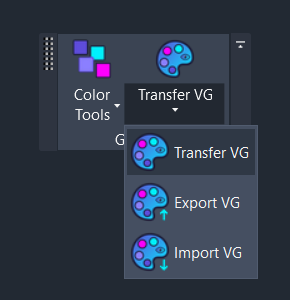
The command opens a dialog where you select a source view, choose which settings to transfer, and select target views.
Features
Section titled “Features”- Selective transfer - Choose exactly which settings to copy: Model Categories, Annotation Categories, Filters, Worksets, Revit Links, Point Clouds, or Imports
- Batch application - Apply settings to multiple target views in a single operation
- Smart chip toggles - Context-sensitive settings that auto-disable when not applicable (e.g., Worksets disabled for non-workshared documents)
- Search and filter - Quickly find target views using the search box
- Same Type selection - One-click button to select all views matching the source view type
- Single transaction - All changes applied atomically for easy undo
How to Use
Section titled “How to Use”Basic Workflow
Section titled “Basic Workflow”- Click “Transfer VG” from the VG Manager dropdown
- Select source view - The active view is selected by default; use the dropdown to choose a different view
- Choose settings to transfer - Toggle the chip buttons for the settings you want to copy
- Select target views - Check the views you want to receive the settings
- Click “Transfer” - Settings are applied to all selected views
Selecting Settings to Transfer
Section titled “Selecting Settings to Transfer”The settings are organized into chip toggles that you can turn on or off:
| Setting | Description |
|---|---|
| Model Categories | Visibility and graphic overrides for model categories (walls, floors, etc.) |
| Annotation Categories | Visibility and graphic overrides for annotation categories (dimensions, text, etc.) |
| Filters | View filters with their overrides and enabled/disabled states |
| Worksets | Workset visibility settings (workshared documents only) |
| Revit Links | Linked model visibility and graphic overrides |
| Point Clouds | Point cloud visibility settings |
| Imports | DWG, SAT, and other imported file visibility |
Finding Target Views
Section titled “Finding Target Views”The target view list shows all printable views in your project (excluding view templates). Use these tools to find views quickly:
- Search box - Type to filter views by name or type
- All button - Select all visible views
- None button - Clear all selections
- Same Type button - Select all views matching the source view type (e.g., all Floor Plans)
User Interface
Section titled “User Interface”Main Dialog
Section titled “Main Dialog”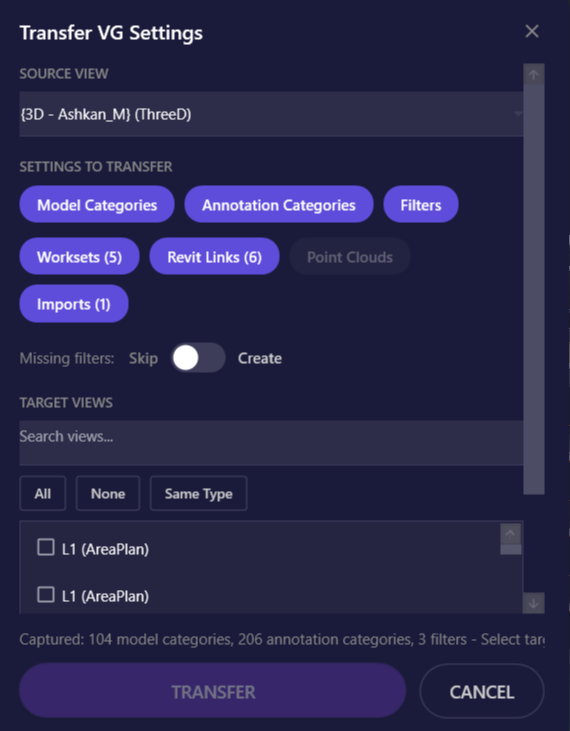
| Element | Description |
|---|---|
| Source View dropdown | Select the view to copy settings from |
| Settings chips | Toggle which VG setting types to transfer |
| Search box | Filter the target view list by name or type |
| Selection buttons | Quickly select All, None, or Same Type views |
| Target Views list | Checkboxes for each available target view |
| Status text | Shows captured settings summary and transfer readiness |
| Transfer button | Apply settings to selected views (enabled when ready) |
Keyboard shortcuts:
Enter- Execute transfer (when button is enabled)Escape- Close dialog
Options & Settings
Section titled “Options & Settings”Transfer Options
Section titled “Transfer Options”| Option | Default | Description |
|---|---|---|
| Model Categories | On | Transfer model category visibility and overrides |
| Annotation Categories | On | Transfer annotation category visibility and overrides |
| Filters | On | Transfer view filters with overrides |
| Worksets | On | Transfer workset visibility (if workshared) |
| Revit Links | On | Transfer linked model visibility (if links exist) |
| Point Clouds | On | Transfer point cloud visibility (if present) |
| Imports | On | Transfer imported geometry visibility (if present) |
What Gets Transferred
Section titled “What Gets Transferred”For each setting type, here’s what is copied:
Categories (Model, Annotation, Imports):
- Visibility on/off
- Halftone setting
- Transparency level
- Projection/cut line weight, color, and pattern
- Surface foreground pattern and color
- Cut foreground pattern and color
Filters:
- Filter enabled/disabled state
- Filter visibility (show/hide)
- All graphic overrides (same as categories)
- Filter-to-view association (filter is added if not present)
Worksets:
- Visibility state (Visible, Hidden, Use Global Setting)
Revit Links:
- Link visibility
- Halftone and transparency
- Line weight and color overrides
Point Clouds:
- Element visibility (hidden/visible in view)
Tips & Best Practices
Section titled “Tips & Best Practices”- Start with a well-configured source - Take time to set up VG settings correctly in one view before transferring to many
- Use Same Type for consistency - When standardizing floor plans or sections, use “Same Type” to quickly select all matching views
- Filter first, categories second - If your workflow uses view filters extensively, transfer filters first to ensure they’re applied before category overrides
- Check warnings - After transfer, review any warnings in the result dialog to identify settings that couldn’t be applied
- Combine with View Templates - For recurring standards, consider creating View Templates from your configured view after verifying the transfer worked correctly
- Test on a few views first - Before transferring to 50 views, try a few target views to verify the results are what you expect
Limitations
Section titled “Limitations”| Limitation | Details |
|---|---|
| View templates excluded | Only printable views are shown - view templates cannot be source or target |
| Single document only | Source and target views must be in the same Revit document - use Export/Import VG for cross-project transfer |
| No subcategory support | Currently transfers top-level category settings only |
Troubleshooting
Section titled “Troubleshooting”Some categories weren’t transferred
Section titled “Some categories weren’t transferred”If a view template is applied to the target view and controls category visibility, those settings cannot be overridden by Transfer VG.
Worksets chip is disabled
Section titled “Worksets chip is disabled”The Worksets option is only available for workshared documents. If your project hasn’t been workshared, this option will be disabled and grayed out.
Related Tools
Section titled “Related Tools”- Export VG - Save VG settings to a file for use in other projects
- Import VG - Load VG settings from a file into your current view
- Color Tools - Apply temporary color overrides to selected elements
- Template Manager - Create and manage view templates