
Quick Toggles Panel
The Quick Toggles Panel provides a dockable interface with instant toggle buttons for common Revit categories. Dock it to the side of your Revit window for persistent access to visibility controls while you work, eliminating trips to the V/G dialog for routine category toggling.
Getting Started
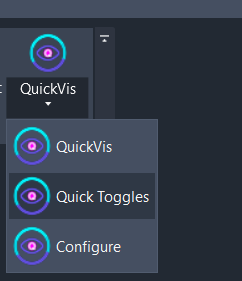
Section titled “Getting Started”Access Quick Toggles from the QuickVis split button dropdown on the Amorphous ribbon tab in the View Tools panel.
Features
Section titled “Features”- Dockable panel - Dock to left or right edge of Revit for persistent access
- Instant toggles - Single-click to show/hide categories
- Visual state indicators - Clear on/off states with color-coded backgrounds
- All On/All Off buttons - Bulk visibility control with one click
- Auto-refresh - Panel updates when switching between views
- Customizable - Choose which toggles appear and their order
The Panel Interface
Section titled “The Panel Interface”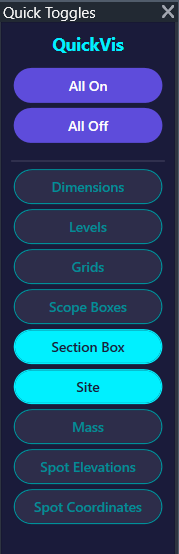
The panel displays a vertical list of toggle buttons, each representing a category or element type.
| Element | Description |
|---|---|
| Toggle buttons | Click to show/hide the category in the active view |
| All On | Shows all categories controlled by visible toggles |
| All Off | Hides all categories controlled by visible toggles |
| Dock handles | Drag to dock panel to left or right edge |
Toggle States
Section titled “Toggle States”| State | Appearance | Meaning |
|---|---|---|
| ON | Cyan/highlighted background | Category is visible in the current view |
| OFF | Dark background, muted border | Category is hidden in the current view |
| Disabled | Grayed out | Category controlled by view template (cannot toggle) |
How to Use
Section titled “How to Use”Opening the Panel
Section titled “Opening the Panel”- Click the dropdown arrow on the QuickVis split button
- Click Quick Toggles
- The panel appears as a floating window
Toggling Categories
Section titled “Toggling Categories”- Click any toggle button to change visibility
- The category immediately hides or shows in the active view
- The button updates to reflect the new state
Using All On/All Off
Section titled “Using All On/All Off”For bulk visibility changes:
- Click All Off to hide all categories at once
- Click All On to show all categories
- Only categories with visible toggles are affected
Docking the Panel
Section titled “Docking the Panel”- Click and drag the panel’s title bar
- Move toward the left or right edge of the Revit window
- Release when the dock indicator appears
- The panel snaps into a docked position
To undock, drag the panel away from the edge.
Default Toggles
Section titled “Default Toggles”Out of the box, these toggles are available:
| Toggle | What It Controls |
|---|---|
| Dimensions | Annotation dimensions |
| Levels | Level datum lines and heads |
| Grids | Grid lines and bubbles |
| Scope Boxes | Scope box boundaries |
| Section Box | 3D view section box clipping boundary |
| Site | Site category, Project Base Point, Survey Point, Internal Origin |
| Mass | Conceptual mass forms |
| Spot Elevations | Spot elevation annotations |
| Spot Coordinates | Spot coordinate annotations |
| Lines | Model lines (3D lines placed in model space) |
Available Toggles
Section titled “Available Toggles”Additional toggles can be added in QuickVis Configure:
| Toggle | What It Controls |
|---|---|
| Reference Planes | Reference plane lines |
| Sections | Section view markers and heads |
| Elevations | Elevation view markers |
| Callouts | Callout boundary markers |
| Text Notes | Text annotation elements |
| Generic Annotations | Generic annotation family instances |
| Matchlines | Matchline elements for sheet coordination |
| Detail Items | 2D detail components |
| Model Lines | Model lines (3D lines in model space, not view-specific) |
| CAD Imports | Imported DWG/DXF files |
| Point Clouds | Point cloud instances |
| Revit Links | Linked Revit models |
| Topography | Topography surfaces; also Toposolids in Revit 2024+ |
Automatic View Updates
Section titled “Automatic View Updates”The panel automatically refreshes toggle states when:
- Switching views - States update to match the new active view
- Applying presets - After using the radial menu, toggles reflect changes
- Manual V/G changes - If you change visibility elsewhere, panel updates
Use Cases
Section titled “Use Cases”Quick Category Toggle While Modeling
Section titled “Quick Category Toggle While Modeling”Keep the panel docked while working:
- Dock the Quick Toggles panel to the properties panel
- Toggle off Dimensions and Text Notes while modeling
- Toggle them back on when documenting
- No dialog navigation required
Focused Coordination View
Section titled “Focused Coordination View”Need to see just the datum elements?
- Click All Off to hide everything
- Toggle on only Grids and Levels
- Review copy-monitored elements
- Click All On to restore
Presentation Preparation
Section titled “Presentation Preparation”Preparing views for export?
- Toggle off Reference Planes, Scope Boxes, Section Box
- Toggle off Matchlines and Callouts
- Keep Dimensions and Grids for context
- Export your clean view
Customizing Toggles
Section titled “Customizing Toggles”To change which toggles appear and their order, use QuickVis Configure.
You can:
- Add toggles from the available categories list
- Remove toggles you don’t use
- Reorder toggles by dragging
- Create a personalized quick-access panel
Limitations
Section titled “Limitations”- View Template restrictions - Categories controlled by view templates appear disabled and cannot be toggled
- Element-level toggles - CAD Imports, Point Clouds, and Revit Links toggle via element hiding, not category visibility
Troubleshooting
Section titled “Troubleshooting”Toggle Does Nothing
Section titled “Toggle Does Nothing”Cause: View template is controlling that category.
Solution: The toggle will appear disabled (grayed out) if a view template controls it. Remove or modify the view template to enable toggling.
Toggle State Doesn’t Match View
Section titled “Toggle State Doesn’t Match View”Cause: Visibility was changed through V/G dialog after opening the panel.
Solution: Switch to another view and back, or close and reopen the Quick Toggles panel to refresh states.
Panel Won’t Dock
Section titled “Panel Won’t Dock”Cause: Docking position may be blocked by other docked panels.
Solution: Try docking to the opposite side, or close other docked panels first.
Missing Categories
Section titled “Missing Categories”Cause: Not all categories are shown by default.
Solution: Use QuickVis Configure to add more toggles to the panel.
Related Tools
Section titled “Related Tools”- QuickVis Radial Menu - Apply preset visibility modes
- QuickVis Configure - Customize presets and toggles
- Toggle Point Clouds - Dedicated point cloud control
- Isolate by Filter - Filter-based element isolation