
Quick Color
Quick Color is a Maya-inspired radial marking menu that provides the fastest way to apply color overrides to selected elements. Instead of navigating through menus or dialogs, simply drag toward a color and release to instantly color your selection.
Getting Started
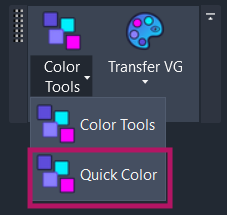
Section titled “Getting Started”Find Quick Color on the Amorphous ribbon tab in the Graphics panel under the Color Tools dropdown.
Features
Section titled “Features”- Radial gesture interface - Eight preset colors arranged in a circle for quick drag-and-release selection
- Cursor-centered menu - Opens exactly where your cursor is, minimizing mouse movement
- Drag gesture detection - Drag toward a color chip and release to apply
- Transparency control - Slider in the center area adjusts element transparency
- Quick clear options - Clear Selected and Clear All buttons for fast override removal
- One-shot operation - Apply a color and the menu closes automatically
How to Use
Section titled “How to Use”Basic Workflow
Section titled “Basic Workflow”- Select elements in any view
- Launch Quick Color from the ribbon dropdown or via keyboard shortcut
- Drag toward a color - Move your mouse toward one of the 8 color chips arranged in a circle
- Release - The color is applied to your selected elements and the menu closes
Adjusting Transparency
Section titled “Adjusting Transparency”Before dragging to a color, use the transparency slider in the center of the radial menu to set the desired transparency level. The transparency applies to the next color you select.
Clearing Overrides
Section titled “Clearing Overrides”The radial menu includes two clear options in the center area:
| Button | Action |
|---|---|
| Clear Selected | Removes color overrides from currently selected elements |
| Clear All | Removes all color overrides in the active view |
Closing Without Applying
Section titled “Closing Without Applying”Click the X button in the center of the menu to close without applying any changes.
User Interface
Section titled “User Interface”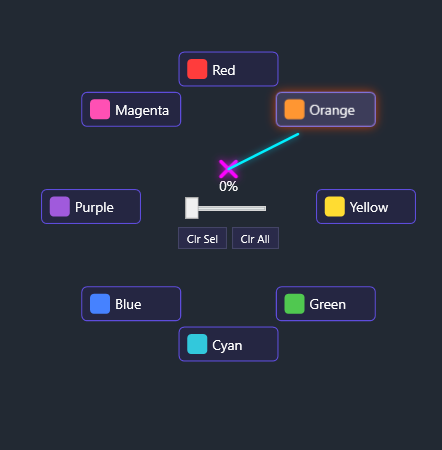
Color Chips
Section titled “Color Chips”Eight preset colors are arranged in a circle around the center. The colors provide a range of high-contrast options suitable for marking and differentiation:
| Position | Color |
|---|---|
| Top | Yellow |
| Top-Right | Orange |
| Right | Red |
| Bottom-Right | Magenta |
| Bottom | Purple |
| Bottom-Left | Blue |
| Left | Cyan |
| Top-Left | Green |
Center Controls
Section titled “Center Controls”The center area contains:
- Transparency slider - Drag to adjust transparency (0-100%)
- Clear Selected - Remove overrides from selected elements
- Clear All - Remove all overrides in the view
- Close button (X) - Exit without applying
Use Cases
Section titled “Use Cases”Quick Markup During Design Reviews
Section titled “Quick Markup During Design Reviews”During coordination meetings, use Quick Color to rapidly mark elements for discussion. Select an element, press your shortcut key, drag to red, and move on. The gesture interface keeps the conversation flowing without interruption.
Visual Differentiation
Section titled “Visual Differentiation”Quickly color-code different element groups to visually distinguish them without setting up view filters. Ideal for impromptu presentations or explaining design intent.
Status Indication
Section titled “Status Indication”Mark elements as approved (green), pending review (yellow), or requiring changes (red) during a walkthrough.
Tips & Best Practices
Section titled “Tips & Best Practices”-
Assign a keyboard shortcut - Set a shortcut via Revit Options > Keyboard Shortcuts. A single key press followed by a drag gesture is the fastest possible workflow.
-
Practice the gesture - The drag-and-release motion becomes second nature quickly. Aim for the center of each color chip.
-
Use with pre-selection - Select elements first using any method (crossing window, Smart Selection, etc.), then invoke Quick Color.
-
Combine with Color Tools - Use Quick Color for quick spot-coloring, or switch to the full Color Tools dialog for systematic color-by-filter operations.
Related Tools
Section titled “Related Tools”- Color Tools - Full-featured color by filter dialog with QA Checker
- Smart Selection - Quickly select similar elements before coloring
- Isolate by Filter - Isolate elements to focus on specific groups