
Isolate by Filter
Isolate by Filter extends Revit’s built-in temporary hide/isolate functionality with powerful filter-based isolation. Select one or more elements and instantly isolate all similar elements in the current view based on shared properties like type, family, category, workset, or phase.
Getting Started
Section titled “Getting Started”Find Isolate by Filter on the Amorphous ribbon tab in the UI Selection panel.
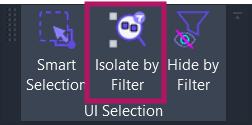
The button is enabled when:
- Model elements are selected in the active view
- The view supports temporary hide/isolate (3D views, floor plans, sections, elevations)
Features
Section titled “Features”- Multiple isolation criteria - Isolate by Instances, Type, Family, Category, Workset, or Phase
- Phase mode support - Choose between Phase Created or Phase Demolished
- Smart toggle behavior - Automatically exits isolation when invoked with no selection
- Group expansion - Optionally expand groups to analyze member elements
- Nested family expansion - Optionally analyze nested family sub-components (up to 3 levels deep)
- Keyboard hotkeys - Quick access to all isolation options via single-key shortcuts
- Session-persistent settings - Window position and settings remembered during Revit session
- Modeless dialog - Stays open while you work, allowing multiple isolation operations
How to Use
Section titled “How to Use”Basic Workflow
Section titled “Basic Workflow”- Select elements in any view
- Click “Isolate by Filter” on the ribbon
- Choose an isolation criterion from the chip buttons:
- Instances - Isolate only the selected elements
- Type - Isolate all elements of the same type(s)
- Family - Isolate all elements from the same family/families
- Category - Isolate all elements of the same category/categories
- Workset - Isolate all elements on the same workset(s)
- Phase - Isolate by Phase Created or Phase Demolished
- Click “ISOLATE” or press
Enter/Space - The view isolates to show only matching elements
Exiting Isolation Mode
Section titled “Exiting Isolation Mode”To restore all elements to visibility:
- Clear your selection (click in empty space or press
ESC) - Click “Isolate by Filter” again
- The view exits isolation mode
Alternatively, use Revit’s built-in isolation controls in the View Control Bar.
Use Cases
Section titled “Use Cases”Isolate All Doors of a Specific Type
Section titled “Isolate All Doors of a Specific Type”- Select one door
- Open Isolate by Filter
- Choose Type
- Click ISOLATE
Result: All doors of that exact type are visible; everything else is hidden.
Focus on a Single Workset
Section titled “Focus on a Single Workset”- Select any element from the target workset
- Open Isolate by Filter
- Choose Workset
- Click ISOLATE
Result: All elements from that workset are visible.
Review Elements by Phase
Section titled “Review Elements by Phase”- Select elements created in a specific phase
- Open Isolate by Filter
- Choose Phase and select Phase Created from the dropdown
- Click ISOLATE
Result: All elements created in that phase are visible.
Isolate a Family Across the Model
Section titled “Isolate a Family Across the Model”- Select any instance of a family
- Open Isolate by Filter
- Choose Family
- Click ISOLATE
Result: All instances of that family are visible, regardless of type.
User Interface
Section titled “User Interface”Main Dialog
Section titled “Main Dialog”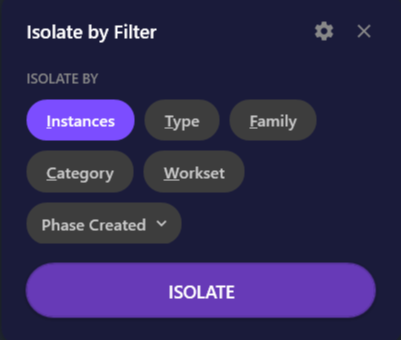
The dialog opens when you click the ribbon button with elements selected.
| Element | Description |
|---|---|
| Settings button (gear icon) | Opens element expansion settings |
| Close button (X) | Closes the dialog |
| Chip buttons | Select the isolation criterion (one at a time) |
| ISOLATE button | Executes the isolation operation |
Isolation Criteria
Section titled “Isolation Criteria”| Chip | Hotkey | Description |
|---|---|---|
| Instances | I | Isolates only the selected elements themselves |
| Type | T | Finds all elements with matching ElementType |
| Family | F | Finds all elements with matching family name |
| Category | C | Finds all elements with matching Revit category |
| Workset | W | Finds all elements on the same workset(s) |
| Phase | P | Finds all elements with matching phase value |
Phase Mode Dropdown
Section titled “Phase Mode Dropdown”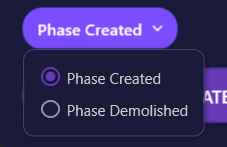
Click the Phase chip to reveal the dropdown with two options:
| Option | Description |
|---|---|
| Phase Created | Match elements by their creation phase (default) |
| Phase Demolished | Match elements by their demolition phase |
The chip label updates to show the current mode (“Phase Created” or “Phase Demolished”).
Element Expansion Settings
Section titled “Element Expansion Settings”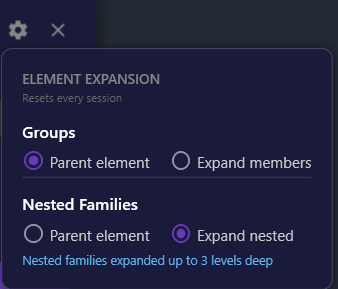
Click the gear icon to open the expansion settings popup. These settings control how the add-in analyzes your selection when determining filter criteria.
| Setting | Options | Default | Description |
|---|---|---|---|
| Groups | Parent element / Expand members | Parent element | Whether to analyze group contents |
| Nested Families | Parent element / Expand nested | Expand nested | Whether to analyze nested family sub-components |
Keyboard Shortcuts
Section titled “Keyboard Shortcuts”The dialog supports keyboard shortcuts for fast operation:
| Key | Action |
|---|---|
I | Select Instances |
T | Select Type |
F | Select Family |
C | Select Category |
W | Select Workset |
P | Select Phase (opens dropdown) |
Enter or Space | Execute isolation |
ESC | Close dialog |
Tips & Best Practices
Section titled “Tips & Best Practices”- Keep the dialog open - The dialog is modeless, so you can select new elements and isolate again without reopening it
- Use with selection tools - Combine with Smart Selection to quickly find and isolate similar elements
- Window position - Drag the dialog to a convenient location; it remembers its position during your Revit session
- Assign a keyboard shortcut - Add a shortcut to the ribbon button (Revit Options > Keyboard Shortcuts) for even faster access
- Phase workflow - The phase mode selection is remembered between uses, so you don’t need to reselect it each time
Limitations
Section titled “Limitations”| Limitation | Details |
|---|---|
| View types | Works only in views that support temporary hide/isolate (3D, floor plans, sections, elevations) |
| Workset isolation | Only available in workshared (central file) models |
| Model elements only | Annotation elements, analytical elements, and view-specific elements are filtered out |
| System families | Some system families may not have a family name property, causing Family isolation to return no results |
| Phase parameters | Elements without phase parameters set may not work with Phase isolation |
Troubleshooting
Section titled “Troubleshooting”Button is grayed out
Section titled “Button is grayed out”You must have at least one element selected for the button to be enabled. Select some model elements and try again.
No matching elements found
Section titled “No matching elements found”If isolation results in an empty view:
- Check that the selected elements have the property you’re filtering by
- System families (walls, floors, ceilings) may not have a “family name” in the traditional sense
- Try using a different criterion (e.g., Category instead of Family)
Workset option is grayed out
Section titled “Workset option is grayed out”The Workset option is only available for workshared models. Open a workshared (central file) model to use this option.
Phase isolation not working
Section titled “Phase isolation not working”Ensure elements have phase parameters set. Some element types don’t support phases. Try selecting different elements or using Phase Created vs. Phase Demolished.
Related Tools
Section titled “Related Tools”- Smart Selection - Find and select similar elements before isolating
- Hide by Filter - Hide elements by filter criteria (opposite of isolate)
- Color Tools - Apply temporary colors to visualize filtered elements