
Export VG
Export VG saves the Visibility/Graphics settings from your active view to a .vgpreset file that can be shared with team members or imported into other Revit projects. This makes it easy to standardize VG configurations across projects without manually recreating them each time.
Getting Started
Section titled “Getting Started”Find Export VG on the Amorphous ribbon tab in the Graphics panel, under the VG Manager dropdown.
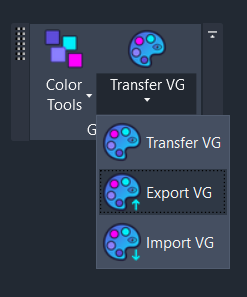
The command is enabled when you have a printable view active (floor plans, sections, elevations, 3D views, etc.). View templates cannot be exported.
Features
Section titled “Features”- Save to shareable file - Export VG settings to a
.vgpresetJSON file - Comprehensive capture - Includes model categories, annotation categories, and view filters
- File metadata - Stores source project name, view name, timestamp, and Revit version
- Cross-project compatibility - Files can be imported into any Revit project
- Organized storage - Default save location keeps presets organized
How to Use
Section titled “How to Use”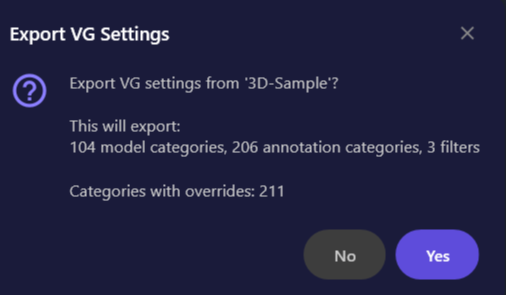
- Open the view containing the VG settings you want to save
- Click “Export VG” from the VG Manager dropdown
- Review the summary showing what will be exported (category counts, filter counts)
- Confirm to proceed with the export
- Choose a file location and name (or accept the default location)
- Settings are saved to the
.vgpresetfile
What Gets Exported
Section titled “What Gets Exported”| Setting Type | Included | Notes |
|---|---|---|
| Model Categories | Yes | Visibility, halftone, transparency, line/fill overrides |
| Annotation Categories | Yes | Visibility and graphic overrides |
| View Filters | Yes | Filter enabled state, visibility, and graphic overrides |
| Worksets | No | Project-specific - use Transfer VG instead |
| Revit Links | No | Project-specific - use Transfer VG instead |
| Point Clouds | No | Project-specific - use Transfer VG instead |
| Imports | No | Project-specific - use Transfer VG instead |
File Format
Section titled “File Format”Exported files use the .vgpreset extension and contain JSON-formatted data:
{ "format_version": "1.0", "name": "Level 1 - Floor Plan VG Settings", "source_view_name": "Level 1 - Floor Plan", "source_view_type": "FloorPlan", "timestamp": "2024-01-15T10:30:00.000Z", "source_project": "Project Name.rvt", "revit_version": "2024", "model_categories": [...], "annotation_categories": [...], "filters": [...]}The metadata fields help identify where the settings came from, making it easier to manage a library of VG presets.
Tips & Best Practices
Section titled “Tips & Best Practices”- Default save location: Files are saved to
%AppData%\Amorphous\VGManager\by default - a centralized location for all your VG presets - Create a preset library: Export VG settings from well-configured views and build a library of presets for common view types
- Include in project templates: Export key VG configurations and store them with your project template files for easy setup of new projects
- Share with team: Copy
.vgpresetfiles to a shared network location so team members can import standardized VG settings - Version tracking: Include the date or version in filenames when updating presets (e.g.,
Structural-VG-2024-01.vgpreset)
Limitations
Section titled “Limitations”| Limitation | Details |
|---|---|
| View templates excluded | Only printable views can be exported - view templates are not supported |
| Project-specific settings | Worksets, Revit links, point clouds, and imports are NOT included in exports |
| Pattern matching by name | Line patterns and fill patterns are stored by name - the target project must have patterns with matching names for those overrides to apply |
| Filter rules not preserved | Only filter names and graphic overrides are exported; filter rules (criteria) are not included (planned for future release) |
Related Tools
Section titled “Related Tools”- Transfer VG - Copy VG settings between views in the same document (includes worksets, links, point clouds)
- Import VG - Load VG settings from a
.vgpresetfile into your current project