
Export Families
Export Families streamlines the process of extracting family files (.rfa) from Revit projects. It provides a guided 4-step wizard with discipline presets (Architecture, Structural, MEP) that pre-select relevant categories, allowing you to quickly filter and export families to an organized folder structure. The add-in automatically handles constraint warning dialogs during export, enabling unattended batch operations.
Getting Started
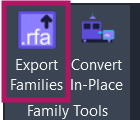
Section titled “Getting Started”Find Export Families on the Amorphous ribbon tab in the Family Tools panel.
Features
Section titled “Features”- Discipline Presets - Pre-configured category selections for Architecture, Structural, Mechanical, Electrical, Plumbing, and Generic disciplines
- 4-Step Wizard Interface - Intuitive step-by-step workflow from preset selection to export
- Family Type Filtering - Filter by All, Model Only, or Annotation Only families
- Organized Output Structure - Automatically organizes exports into discipline-based folder hierarchies
- Overwrite Control - Choose to overwrite existing files or skip them
- Real-time Progress - Visual progress bar with current family name during export
- Export Summary - Detailed summary showing succeeded, skipped, and failed exports
- Auto-Dismiss Dialogs - Automatically handles constraint warning dialogs during family editing
- Cancellation Support - Cancel in-progress exports with graceful handling
- Keyboard Shortcuts - Hotkeys for quick navigation through the wizard
How to Use
Section titled “How to Use”Basic Workflow
Section titled “Basic Workflow”- Open a project - Open a Revit project containing families you want to export
- Click “Export Families” on the ribbon
- Choose discipline preset - Select a discipline to pre-select relevant categories
- Select family type - Filter by All, Model Only, or Annotation Only
- Review categories - Adjust pre-selected categories if needed
- Select families - Choose which families to export
- Set destination - Choose export folder and overwrite behavior
- Click Export - Begin the export process
Step 1: Discipline Preset
Section titled “Step 1: Discipline Preset”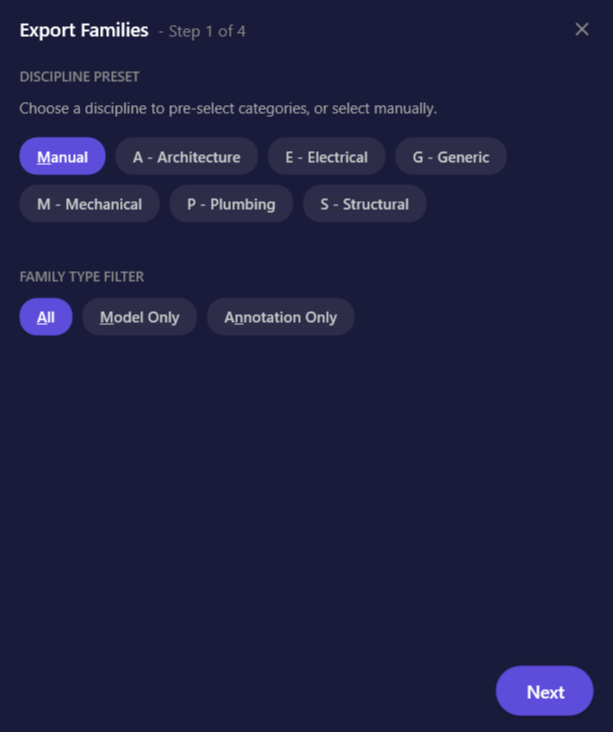
Choose a discipline preset to automatically pre-select relevant categories:
| Preset | Label | Categories Included |
|---|---|---|
| Manual | Manual Selection | None (start from scratch) |
| A | Architecture | Doors, Windows, Walls, Floors, Roofs, Ceilings, Stairs, Railings, Curtain Panels, Curtain Wall Mullions, Furniture, Casework, Columns, Entourage, Furniture Systems, Planting, Site |
| S | Structural | Structural Columns, Structural Framing, Structural Foundations, Structural Stiffeners, Structural Connections, Structural Rebar, Structural Fabric Areas, Structural Fabric Reinforcement, Structural Trusses |
| M | Mechanical | Mechanical Equipment, Air Terminals, Ducts, Duct Fittings, Duct Accessories, Flex Ducts, Mechanical Control Devices |
| E | Electrical | Electrical Equipment, Electrical Fixtures, Lighting Fixtures, Data Devices, Fire Alarm Devices, Nurse Call Devices, Security Devices, Telephone Devices, Communication Devices, Cable Trays, Cable Tray Fittings, Conduits, Conduit Fittings |
| P | Plumbing | Plumbing Fixtures, Plumbing Equipment, Pipes, Pipe Fittings, Pipe Accessories, Sprinklers, Fire Protection |
| G | Generic | Generic Models, Mass, Specialty Equipment, Parking |
Then select a family type filter:
| Filter | Description |
|---|---|
| All | Include both model and annotation families |
| Model Only | Include only model families (3D geometry) |
| Annotation Only | Include only annotation families (tags, symbols) |
Step 2: Category Selection
Section titled “Step 2: Category Selection”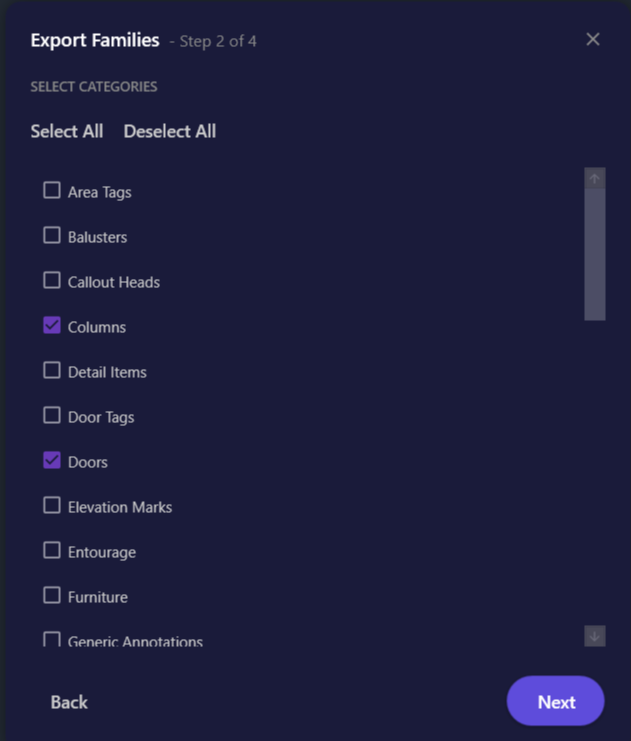
Review and modify the pre-selected categories:
- Select All - Check all available categories
- Deselect All - Uncheck all categories
- Individual checkboxes - Toggle specific categories
Step 3: Family Selection
Section titled “Step 3: Family Selection”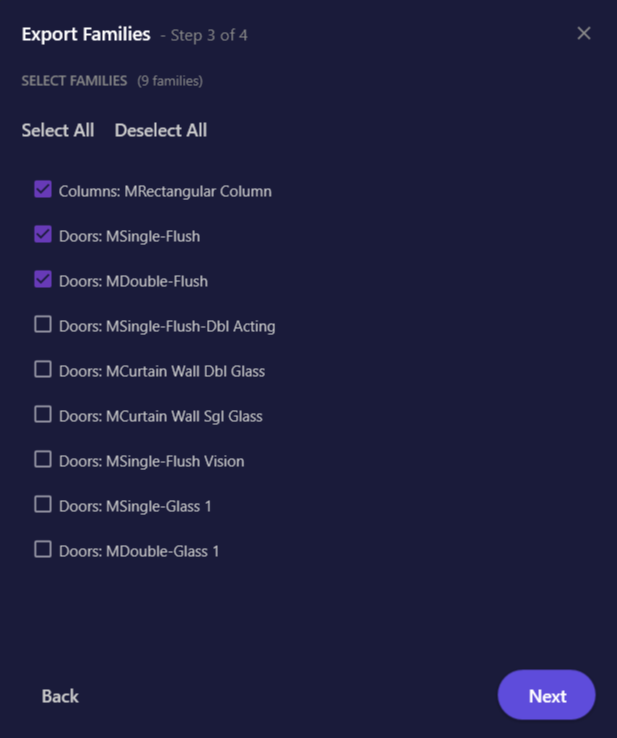
Select which families to export from the filtered list:
- The family count displays in the header (e.g., “42 families”)
- Select All - Check all families in the list
- Deselect All - Uncheck all families
- Families are filtered by your category selection and family type filter
Step 4: Export Location
Section titled “Step 4: Export Location”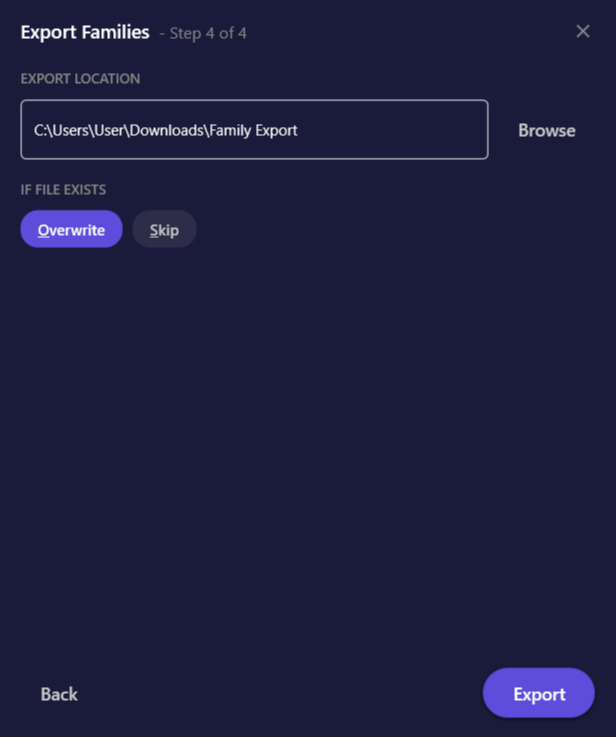
Configure the export destination and behavior:
| Option | Description | Default |
|---|---|---|
| Destination folder | Where to save exported families | Downloads\Family Export |
| Overwrite existing | Replace existing .rfa files with same name | Selected |
| Skip existing | Keep existing files, only export new families | - |
Click Browse to select a custom destination folder.
During Export
Section titled “During Export”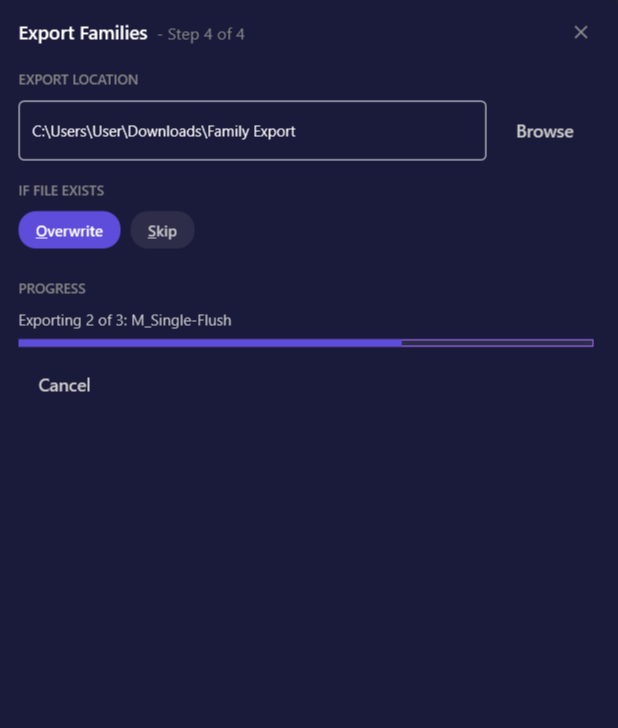
While exporting:
- Progress bar shows overall completion percentage
- Current family name displays above the progress bar
- Cancel button allows you to stop the operation mid-export
The add-in automatically dismisses constraint warning dialogs that may appear when opening families for editing.
Export Summary
Section titled “Export Summary”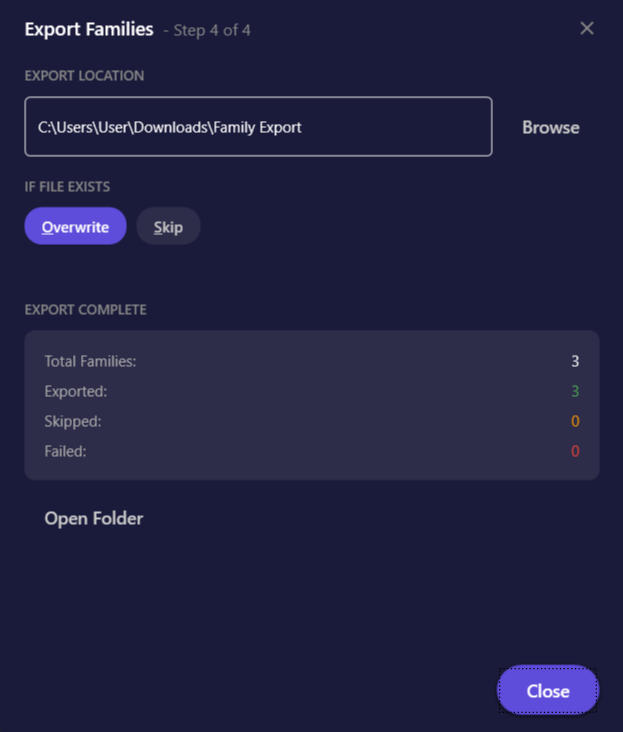
After export completes, a summary shows:
| Statistic | Description |
|---|---|
| Total | Number of families attempted |
| Succeeded | Families exported successfully |
| Skipped | Families skipped (already exist with Skip behavior) |
| Failed | Families that could not be exported (with error details) |
Click Open Folder to navigate directly to the export location.
User Interface
Section titled “User Interface”Wizard Dialog
Section titled “Wizard Dialog”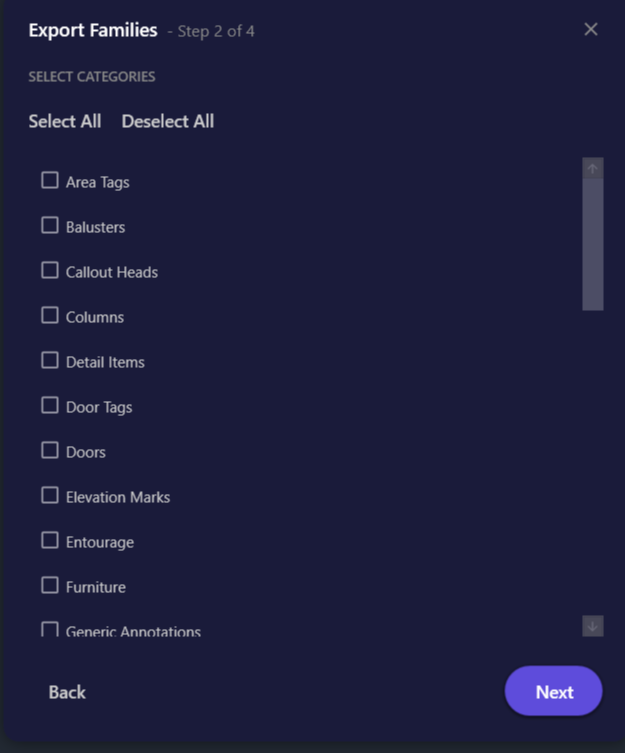
The dialog follows a 4-step wizard pattern:
| Element | Description |
|---|---|
| Step indicator | Shows current step and total steps (1-4) |
| Discipline chips | Single-letter buttons for quick preset selection |
| Family type chips | Filter between All, Model Only, Annotation Only |
| Category list | Checkboxes for selecting categories |
| Family list | Checkboxes for selecting individual families |
| Select All / Deselect All | Bulk selection buttons |
| Browse button | Opens folder picker for destination |
| Overwrite/Skip radios | Control file conflict behavior |
| Back / Next buttons | Navigate between steps |
| Export button | Begins the export (Step 4 only) |
| Progress bar | Shows export progress |
| Cancel button | Stops in-progress export |
Keyboard Shortcuts
Section titled “Keyboard Shortcuts”| Key | Step | Action |
|---|---|---|
| M | 1 | Select Manual preset |
| A | 1 | Select All family types |
| N | 1 | Select Annotation Only |
| O | 4 | Select Overwrite existing |
| S | 4 | Select Skip existing |
| Enter | All | Proceed to next step / Export |
| Escape | All | Close dialog |
Output Folder Structure
Section titled “Output Folder Structure”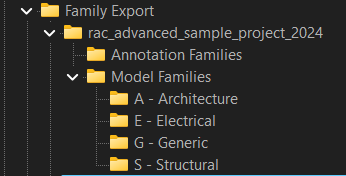
Families are organized into a discipline-based hierarchy:
[Destination Folder]/└── [Project Name]/ ├── Model Families/ │ ├── A - Architecture/ │ │ ├── Door_SingleFlush.rfa │ │ └── Window_Fixed.rfa │ ├── S - Structural/ │ │ └── Column_Steel_W.rfa │ ├── M - Mechanical/ │ ├── E - Electrical/ │ ├── P - Plumbing/ │ └── G - Generic/ │ └── Equipment_Generic.rfa └── Annotation Families/ ├── Door_Tag.rfa └── Room_Tag.rfaOrganization rules:
- Model families are sorted into discipline subfolders based on their category
- Annotation families are placed in a single “Annotation Families” folder
- Categories not matching any discipline preset go to “G - Generic”
Options & Settings
Section titled “Options & Settings”| Option | Description | Default |
|---|---|---|
| Discipline Preset | Pre-selects categories matching the discipline | Manual Selection |
| Family Type Filter | Filters families by category type | All |
| Export Location | Destination folder for exported families | Downloads\Family Export |
| Overwrite Behavior | Overwrite or skip existing .rfa files | Overwrite |
Use Cases
Section titled “Use Cases”| Scenario | Recommended Approach |
|---|---|
| Export all structural families for new project | Select S - Structural preset, select all families |
| Extract specific door families | Manual preset, select Doors category, pick individual families |
| Backup all project families | Manual preset, select all categories, choose Overwrite |
| Export annotation families only | Any preset with Annotation Only filter |
| Export without replacing existing | Choose Skip for overwrite behavior |
| Create discipline-specific library | Use appropriate discipline preset (A, S, M, E, P) |
| Selective export after project cleanup | Manual preset, carefully select categories and families |
Tips & Best Practices
Section titled “Tips & Best Practices”- Use discipline presets - Start with a discipline preset rather than Manual to save time on category selection
- Filter by family type first - If you only need model or annotation families, set the filter in Step 1 before proceeding
- Preview before export - Review the family list in Step 3 to avoid exporting unwanted families
- Use Skip for incremental exports - When updating an existing library, use Skip behavior to only export new families
- Organize by project - The automatic project name folder helps keep families organized by source project
- Close family editors first - Families that are open in the family editor may fail to export
- Batch processing - For large projects, consider running Export Families multiple times with different discipline presets
Limitations
Section titled “Limitations”| Limitation | Details |
|---|---|
| System families cannot be exported | Only editable (loadable) families are listed; walls, floors, and other system families are not available |
| In-place families cannot be exported | In-place families are project-specific and cannot be extracted as .rfa files; use Convert In-Place to convert and export them |
| Families must have valid category | Families without a FamilyCategory assigned are skipped |
| Project must be saved | Cannot export from unsaved projects |
| In-use families may fail | Families open in family editor may cause errors |
| Large batches are memory-intensive | Exporting hundreds of families may be slow and consume significant memory |
| Some dialogs not handled | Certain unusual dialog types may not be auto-dismissed |
Troubleshooting
Section titled “Troubleshooting”Family not appearing in list
Section titled “Family not appearing in list”Possible causes:
- The family is a system family (walls, floors, etc.) which cannot be exported
- The family category doesn’t match your selected categories
- The family type filter excludes it (Model Only vs Annotation Only)
Solution: Check that the family is a loadable family with a valid category, and adjust your category selection and type filter.
Export fails for specific family
Section titled “Export fails for specific family”Possible causes:
- Family is open in the family editor
- Family has corrupt geometry
Solution: Close any open family editors and try again. Check the error message in the summary for specific details.
”Project must be saved” message
Section titled “”Project must be saved” message”The project file must be saved to disk before families can be exported.
Solution: Save your project (Ctrl+S) and try again.
Constraint dialogs still appearing
Section titled “Constraint dialogs still appearing”While Export Families handles most constraint warning dialogs automatically, some unusual dialog types may not be recognized.
Solution: If you encounter a dialog that isn’t auto-dismissed, note the dialog text and manually dismiss it. Consider reporting the dialog text so it can be added to future versions.
Too many families to scroll through
Section titled “Too many families to scroll through”Large projects may have hundreds of families, making the list difficult to navigate.
Solution: Use discipline presets to narrow down categories first, then select families. Consider exporting in batches by discipline.
Export is very slow
Section titled “Export is very slow”Possible causes:
- Large number of families selected
- Complex families with many constraints
- Limited system memory
Solution: Export in smaller batches using discipline presets. Close other applications to free memory. Consider exporting during off-peak times.
Related Tools
Section titled “Related Tools”- Convert In-Place - Convert in-place families to loadable families before exporting