
Convert In-Place
Convert In-Place transforms Revit in-place families into reusable loadable families (.rfa files). In-place families are project-specific elements that cannot be easily shared or reused across projects. This tool extracts geometry, transfers materials, and optionally replaces original instances with the new loadable family at their exact positions.
Getting Started
Section titled “Getting Started”Find Convert In-Place on the Amorphous ribbon tab in the Family Tools panel.
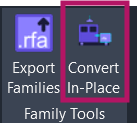
Smart Pre-Selection: Select in-place family instances in Revit before launching the command to skip the family selection step and go directly to conversion options.
Features
Section titled “Features”- Batch conversion - Convert multiple in-place families in a single operation
- Smart pre-selection - Pre-select instances to streamline the workflow
- Automatic template matching - Selects appropriate family templates based on original category
- Material transfer - Preserves materials from the original geometry
- Instance replacement - Optionally replace originals with new loadable family instances
- Custom template support - Use any .rft family template for specialized conversions
- Progress tracking - Real-time progress display with cancellation support
- Detailed summary - Review success/failure counts with error messages
How to Use
Section titled “How to Use”The add-in uses a 3-step wizard interface that guides you through the conversion process.
Basic Workflow
Section titled “Basic Workflow”- Launch the tool from the ribbon (optionally pre-select in-place instances first)
- Select families to convert (or use pre-selection to skip this step)
- Configure options - template mode, material transfer, instance replacement
- Set output folder and click Convert
- Review the summary and open the output folder
Pre-Selection Workflow
Section titled “Pre-Selection Workflow”For faster conversions when you know exactly which families to convert:
- Select in-place family instances directly in any Revit view
- Click “Convert In-Place” on the ribbon
- The wizard opens at Step 2 (Options), skipping family selection
- Configure options and proceed with conversion
User Interface
Section titled “User Interface”Step 1: Select Families
Section titled “Step 1: Select Families”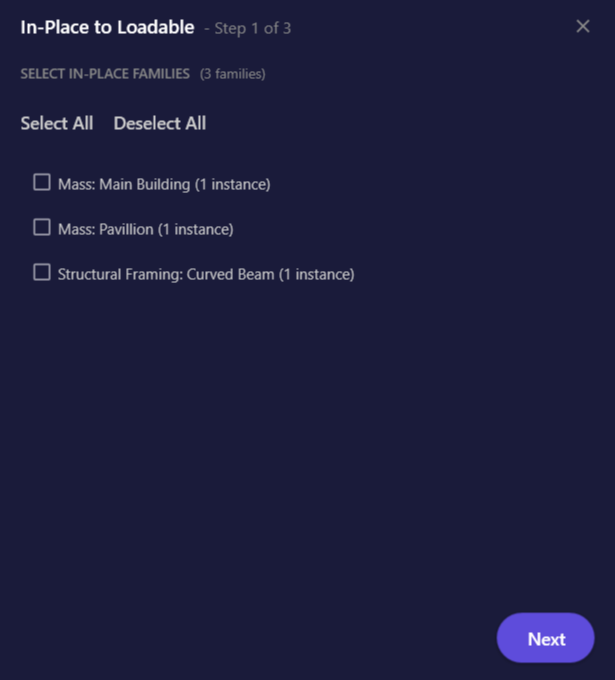
This step displays all in-place families found in your project, grouped by category.
| Element | Description |
|---|---|
| Warning bar | Reminder that converted geometry is static (no parameters) |
| Family list | All in-place families grouped by category with instance counts |
| Category headers | Collapsible groups (e.g., “Generic Models”, “Casework”) |
| Instance count | Shows how many instances exist (e.g., “CustomElement (3 instances)“) |
| Select All | Select all families in the list |
| Deselect All | Clear all selections |
| Next | Proceed to Step 2 |
Step 2: Options
Section titled “Step 2: Options”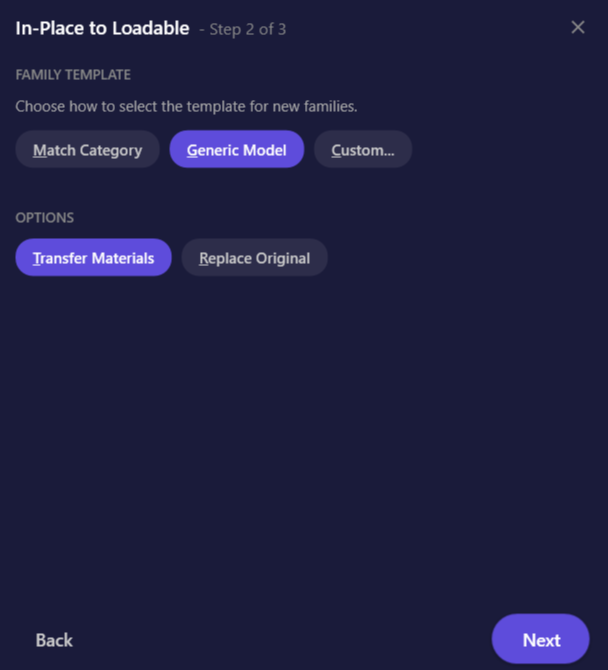
Configure how families should be converted.
| Element | Description |
|---|---|
| Match Category | Automatically select template based on original category (recommended) |
| Generic Model | Use Generic Model.rft for all conversions |
| Custom | Browse to select any .rft template file |
| Browse button | Opens file picker for custom template selection |
| Transfer Materials | Copy material properties from source geometry (default: on) |
| Replace Original | Delete in-place instances and place new loadable family (default: off) |
Step 3: Output & Convert
Section titled “Step 3: Output & Convert”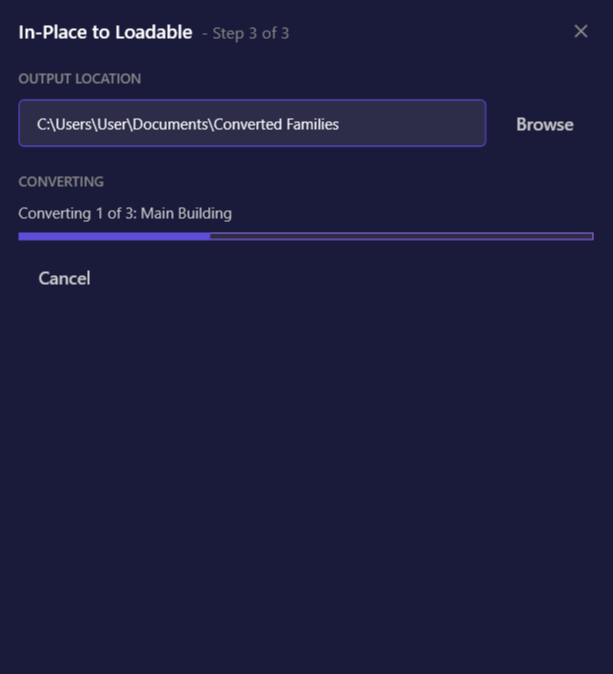
Set the output location and start the conversion.
| Element | Description |
|---|---|
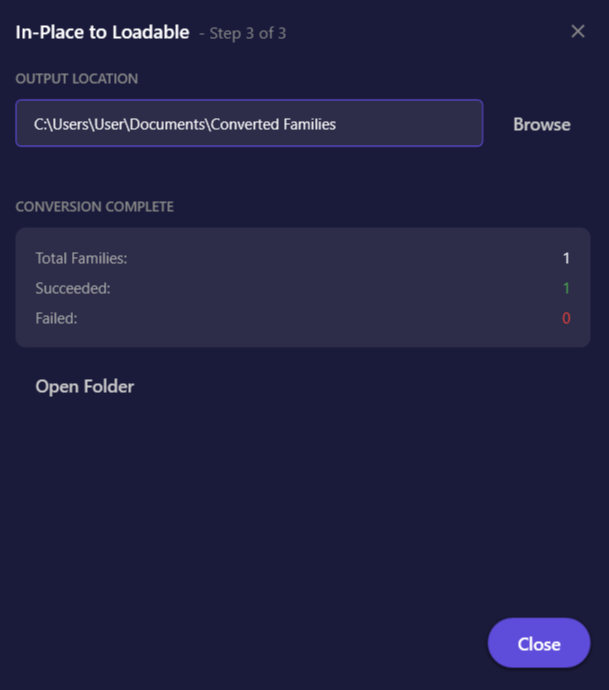
| Output folder | Where .rfa files are saved (default: Documents\Converted Families) |
| Browse | Select a different output folder |
| Convert | Start the conversion process |
| Progress bar | Shows conversion progress with current family name |
| Cancel | Stop the conversion (available during processing) |
| Summary panel | Shows total, succeeded, and failed counts after completion |
| Open Folder | Open the output folder in File Explorer |
Options & Settings
Section titled “Options & Settings”Template Modes
Section titled “Template Modes”| Mode | Description | Best For |
|---|---|---|
| Match Category | Auto-selects template based on original category | Most conversions |
| Generic Model | Uses Generic Model.rft for everything | Quick conversions, troubleshooting |
| Custom | Use any .rft template you specify | Specialized categories, custom templates |
Conversion Options
Section titled “Conversion Options”| Option | Default | Description |
|---|---|---|
| Transfer Materials | On | Copy materials from source geometry to new family |
| Replace Original | Off | Delete in-place instances and place new loadable family at exact positions |
| Output Folder | Documents\Converted Families | Where .rfa files are saved |
Template Matching Table
Section titled “Template Matching Table”When using Match Category mode, the add-in maps categories to templates:
| Category | Template Used |
|---|---|
| Generic Models | Generic Model.rft |
| Casework | Casework.rft |
| Columns | Column.rft |
| Doors | Door.rft |
| Electrical Equipment | Electrical Equipment.rft |
| Electrical Fixtures | Electrical Fixture.rft |
| Entourage | Entourage.rft |
| Furniture | Furniture.rft |
| Furniture Systems | Furniture System.rft |
| Lighting Fixtures | Lighting Fixture.rft |
| Mechanical Equipment | Mechanical Equipment.rft |
| Plantings | Planting.rft |
| Plumbing Fixtures | Plumbing Fixture.rft |
| Railings | Railing.rft |
| Site | Site.rft |
| Specialty Equipment | Specialty Equipment.rft |
| Structural Columns | Structural Column.rft |
| Structural Foundations | Structural Foundation.rft |
| Structural Framing | Structural Framing - Beams and Braces.rft |
| Windows | Window.rft |
| Other categories | Generic Model.rft (fallback) |
Tips & Best Practices
Section titled “Tips & Best Practices”- Pre-select for speed - In large projects with many in-place families, pre-selecting specific instances avoids a full project scan
- Review before replacing - Test with Replace Original off first to verify the converted family looks correct before deleting originals
- Match Category for accuracy - Use Match Category template mode to ensure the family appears in the correct category browser location
- Check materials - If materials don’t appear in the converted family, ensure the original in-place geometry has materials assigned
- Create a dedicated folder - Organize converted families in a separate folder for easy management
- Batch similar elements - Convert families of the same category together for consistent results
Use Case Recommendations
Section titled “Use Case Recommendations”| Scenario | Recommended Settings |
|---|---|
| Create reusable library from project | Match Category + Transfer Materials |
| Quick conversion for sharing | Generic Model + Transfer Materials |
| Clean up project (remove in-place families) | Match Category + Replace Original |
| Specialized family creation | Custom template + as needed |
Limitations
Section titled “Limitations”| Limitation | Details |
|---|---|
| Static geometry only | No parametric dimensions, formulas, family parameters, or constraints. The converted family is a fixed geometric snapshot. |
| No nested families | Nested family relationships are not preserved; geometry is flattened into single solids. |
| No void geometry | Void cuts from in-place families are flattened. |
| Template compatibility | Extracted geometry must be compatible with the selected template’s category and host requirements. |
What Gets Transferred
Section titled “What Gets Transferred”| Transfers | Does Not Transfer |
|---|---|
| Solid geometry | Parametric dimensions |
| Surface materials | Family parameters |
| Model curves | Formulas and constraints |
| Geometric position | Nested family references |
| Void geometry (subtracts from flattened solid) | |
| Reference planes/lines |
Troubleshooting
Section titled “Troubleshooting”Complex geometry fails to convert
Section titled “Complex geometry fails to convert”Cause: Some complex in-place geometry may not transfer cleanly to a loadable family.
Solutions:
- Try using Generic Model template instead of Match Category
- Convert one family at a time to identify which specific geometry is problematic
- Simplify the in-place geometry in the original before converting
Materials not appearing in converted family
Section titled “Materials not appearing in converted family”Cause: The source geometry may use paint instead of assigned materials, or Transfer Materials was disabled.
Solutions:
- Ensure Transfer Materials is enabled in Step 2
- Check if the source in-place family has materials assigned to geometry (not just painted surfaces)
- Open the converted family and manually assign materials if needed
Placement is incorrect after Replace Original
Section titled “Placement is incorrect after Replace Original”Cause: The tool uses the geometry bounding box minimum point for placement.
Solutions:
- Verify the source instance is placed at the expected level
- Check if the in-place family has unusual geometry bounds
- After replacement, manually adjust the new instance position if needed
Template not found error
Section titled “Template not found error”Cause: Revit family templates are not installed in the expected location.
Solution: Ensure family templates are installed at:
C:\ProgramData\Autodesk\RVT {version}\Family Templates\English-Imperial\or
C:\ProgramData\Autodesk\RVT {version}\Family Templates\English\Large project scanning is slow
Section titled “Large project scanning is slow”Cause: The full project scan for in-place families takes time on large projects.
Solution: Use pre-selection - select specific in-place instances in Revit before launching the command to skip the scanning step.
Conversion succeeds but geometry looks different
Section titled “Conversion succeeds but geometry looks different”Cause: In-place families may contain reference planes, work planes, or construction geometry that affects the final appearance.
Solutions:
- Open the converted family in the Family Editor and review/clean up geometry
- Check if the original had hidden reference geometry affecting bounds
- Consider this a starting point for manual family refinement
Related Tools
Section titled “Related Tools”- Export Families - Batch export loadable families from your project