
Compare Templates
Compare Templates provides a detailed side-by-side comparison of two view templates, showing all parameter values and their controlled status. Use it to troubleshoot unexpected view behavior, standardize templates across your project, or understand the differences between similarly-named templates.
Getting Started
Section titled “Getting Started”Find Compare Templates on the Amorphous ribbon tab in the Data Tools panel.
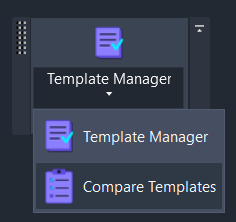
To access Compare Templates:
- Navigate to the Amorphous tab
- Find the Data Tools panel
- Click the dropdown arrow on the Template Manager split button
- Select Compare Templates from the menu
The command requires an open Revit document with at least two view templates to compare.
Features
Section titled “Features”- Side-by-side parameter comparison - View all template parameters in a single table with both values displayed
- Controlled status visibility - See which parameters are controlled by each template
- Difference highlighting - Parameters with different values are highlighted for easy identification
- Difference-only filtering - Toggle to show only parameters that differ between templates
- Category grouping - Parameters organized by their Revit category for easier navigation
- Status indicators - Clear visual feedback showing “Different” or “Same” for each parameter
How to Use
Section titled “How to Use”Basic Workflow
Section titled “Basic Workflow”- Click the dropdown arrow on Template Manager
- Select “Compare Templates” from the menu
- The Template Selection dialog opens
- Select Template A from the first dropdown
- Select Template B from the second dropdown
- Click “Compare” to analyze the templates
- Review the results in the comparison window
Selecting Templates
Section titled “Selecting Templates”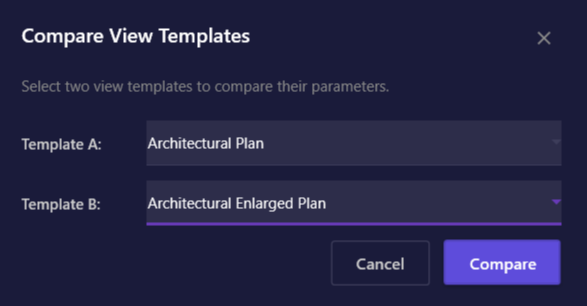
The Template Selection dialog lists all view templates in your project alphabetically. Use the dropdowns to select the two templates you want to compare:
| Element | Description |
|---|---|
| Template A | The first template (displayed in left column of results) |
| Template B | The second template (displayed in right column of results) |
| Compare | Analyzes both templates and opens the results window |
| Cancel | Closes the dialog without comparing |
Reviewing Results
Section titled “Reviewing Results”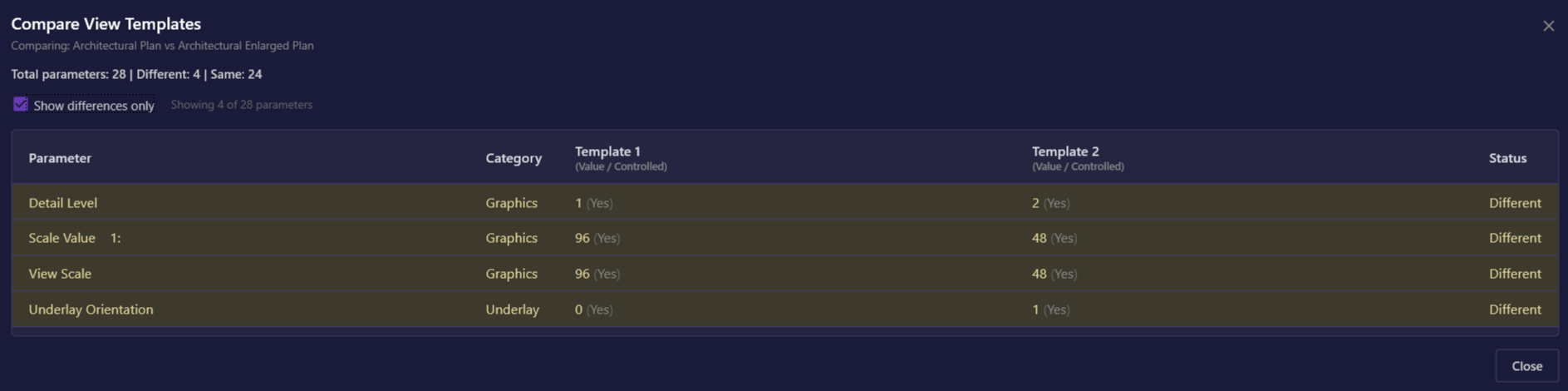
The Comparison Results window displays all parameters from both templates:
| Column | Description |
|---|---|
| Parameter | The parameter name (e.g., “V/G Overrides Model”, “Detail Level”) |
| Category | The parameter category grouping (e.g., “Graphics”, “Extents”) |
| Template A | Value and controlled status for the first template |
| Template B | Value and controlled status for the second template |
| Status | Shows “Different” or “Same” for quick scanning |
Understanding the Value/Controlled display:
Each template column shows the parameter value followed by its controlled status in parentheses:
Standard (Controlled)- Parameter value is “Standard” and the template controls this parameterCoarse (Not controlled)- Parameter value is “Coarse” but the template does not control it(not set) (Not controlled)- Parameter has no value and is not controlled
Filtering to Differences
Section titled “Filtering to Differences”Use the “Show differences only” checkbox to focus on what matters:
- Checked (default) - Shows only parameters where the templates differ
- Unchecked - Shows all parameters from both templates
The filter info text (e.g., “Showing 12 of 87 parameters”) indicates how many parameters are currently displayed versus the total analyzed.
User Interface
Section titled “User Interface”Template Selection Dialog
Section titled “Template Selection Dialog”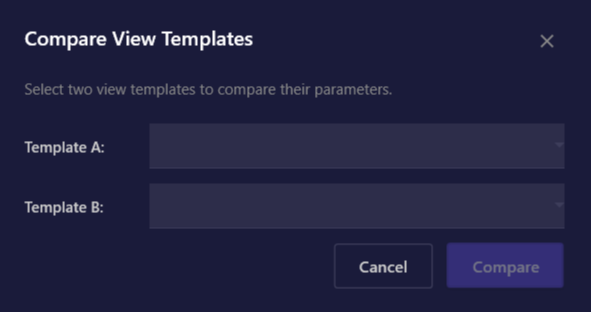
| Element | Purpose |
|---|---|
| Close button (X) | Closes the dialog |
| Template A dropdown | Select the first template to compare |
| Template B dropdown | Select the second template to compare |
| Validation message | Displays error if invalid selection (e.g., same template twice) |
| Cancel button | Closes without comparing |
| Compare button | Opens comparison results (enabled when valid selection made) |
Keyboard shortcuts:
ESC- Close the dialogEnter- Click Compare (when enabled)
Comparison Results Window
Section titled “Comparison Results Window”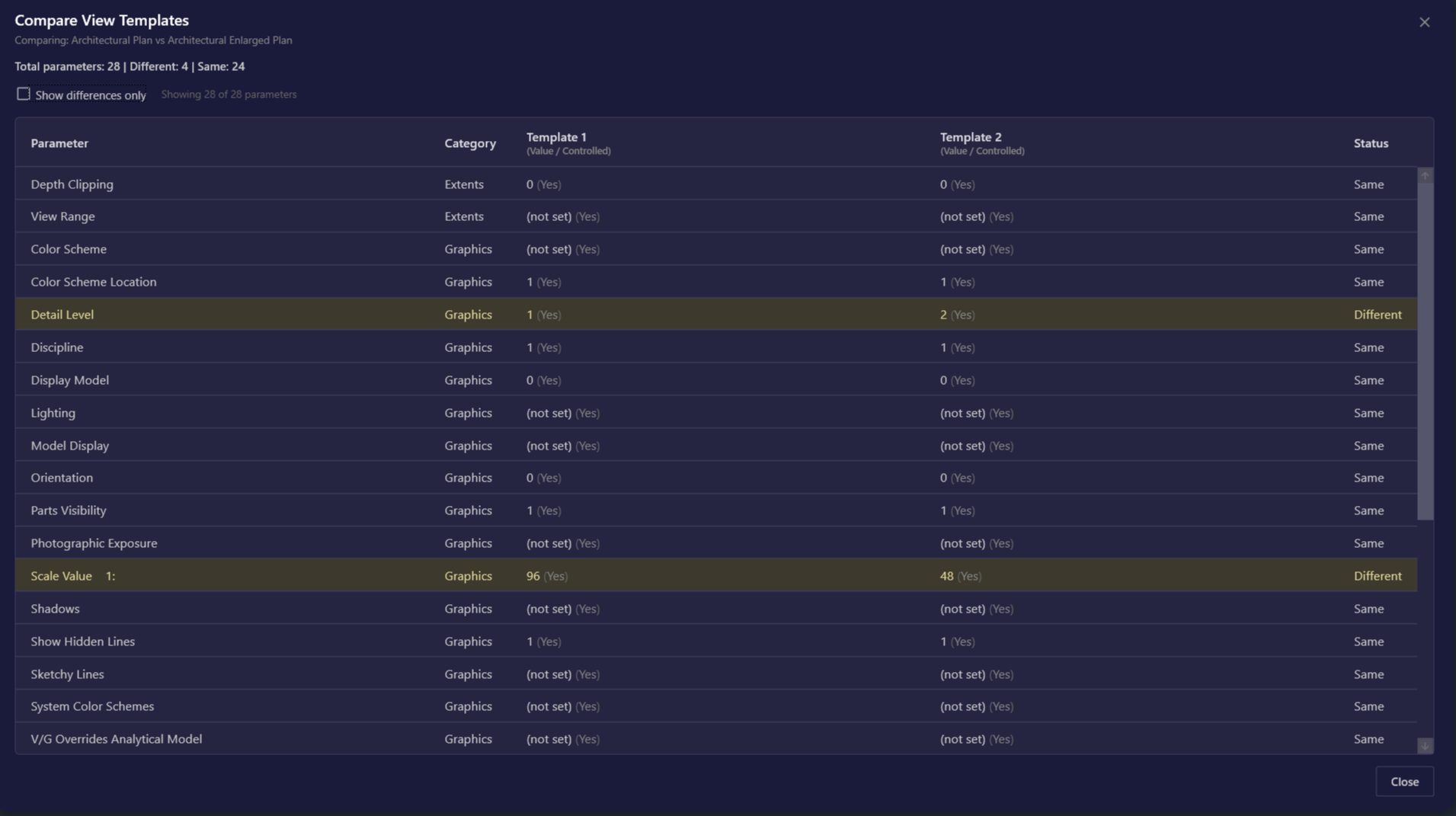
| Element | Purpose |
|---|---|
| Title bar | Shows “Compare View Templates” with close button |
| Subtitle | Displays names of both templates being compared |
| Summary | Shows total parameters and number of differences found |
| Show differences only | Checkbox to filter the parameter list |
| Filter info | Shows count of visible vs. total parameters |
| Parameter table | Scrollable grid with all comparison data |
| Close button | Closes the results window |
Visual indicators:
- Amber/yellow row background - Parameter has different values between templates
- Standard row background - Parameter values are the same
Keyboard shortcuts:
ESC- Close the window- Arrow keys - Navigate rows in the table
Use Cases
Section titled “Use Cases”| Scenario | How Compare Templates Helps |
|---|---|
| Troubleshooting view differences | Compare the template assigned to a “correct” view with a “problem” view to find the parameter causing issues |
| Standardizing templates | Compare office standard template with project template to identify deviations |
| Template cleanup | Compare similarly-named templates to determine if they’re duplicates that can be consolidated |
| Documentation | Export template differences for project handoff or QA documentation |
| Learning templates | Compare a working template with default to understand what parameters were customized |
| Migration verification | After copying templates between projects, verify all parameters transferred correctly |
Options & Settings
Section titled “Options & Settings”Default Filter State
Section titled “Default Filter State”| Option | Default | Description |
|---|---|---|
| Show differences only | On | When enabled, only shows parameters with different values |
Window Behavior
Section titled “Window Behavior”- Resizable - Drag window edges to resize (minimum 700x400 pixels)
- Draggable - Click and drag the title bar or any empty area to move
- Modal - The results window blocks interaction with Revit until closed
- Centered - Opens centered over the Revit window
- Start with differences - Keep “Show differences only” enabled to quickly identify what varies between templates, then uncheck to see the full picture
- Check controlled status - A parameter might have the same value in both templates but only be controlled by one; check the controlled status when troubleshooting
- Use meaningful names - Give templates descriptive names so they’re easy to identify in the dropdown lists
- Compare in pairs - If you need to compare multiple templates, do pairwise comparisons (A vs B, then A vs C) to build a complete picture
- Look at categories - Use the Category column to focus on specific parameter groups (Graphics, Extents, etc.)
- For audit purposes - Use Template Manager to first identify which templates are in use, then use Compare Templates to analyze specific pairs
Limitations
Section titled “Limitations”| Limitation | Details |
|---|---|
| Two templates only | Each comparison analyzes exactly two templates; for more, run multiple comparisons |
| Read-only | Compare Templates only displays differences; use Revit’s native template editor to make changes |
| Parameter values | Some complex parameters may display as “(not set)” if the API cannot retrieve their values |
| No export | Results cannot be exported directly; use screenshots or Template Manager’s Excel export for documentation |
| Linked models | Only compares templates in the active document, not linked models |
Troubleshooting
Section titled “Troubleshooting”Compare button stays disabled
Section titled “Compare button stays disabled”This happens when:
- The same template is selected in both dropdowns
- One or both dropdowns have no selection
Solution: Select two different templates from the dropdowns.
Many parameters show “(not set)”
Section titled “Many parameters show “(not set)””Some template parameters are not accessible via the Revit API, particularly for internal or specialized settings.
Workaround: Focus on the parameters that do show values; the most common graphics and visibility settings are typically available.
No differences found but views look different
Section titled “No differences found but views look different”If Compare Templates shows no differences but views using these templates look different:
- Verify you’re comparing the correct templates
- Check if views have local overrides that bypass the template
- Some visual differences may come from workset visibility or linked model settings not controlled by view templates
Window appears blank or freezes
Section titled “Window appears blank or freezes”This may occur with very complex templates or in large projects.
Solution: Wait a few seconds for the comparison to complete. If the issue persists, close and reopen the tool.
Related Tools
Section titled “Related Tools”- Template Manager - Audit template usage across sheets and views, apply templates in bulk
- Transfer VG - Copy visibility/graphics settings between views
- QuickVis - Quick visual style changes and overrides