
Settings
The Settings dialog is the central hub for managing your Amorphous account, controlling privacy preferences, and checking for software updates. It provides quick access to your account status, subscription tier, and offline access information.
Getting Started
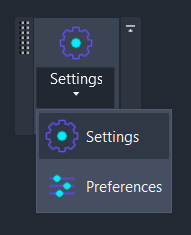
Section titled “Getting Started”Find Settings on the Amorphous ribbon tab in the Settings panel. Click the main Settings button to open the dialog.
Account
Section titled “Account”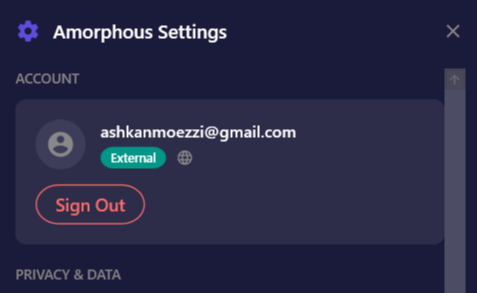
The Account section displays your current sign-in status and subscription information.
| Element | Description |
|---|---|
| Your registered email address, or “Not signed in” if logged out | |
| Source Indicator | Shows whether you installed via Website or Autodesk App Store |
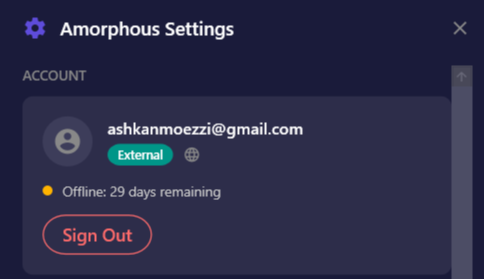
| Offline Status | When offline, displays remaining days until reconnection is needed |
| Sign In / Sign Out | Button to manage your account access |
Signing In
Section titled “Signing In”First-time users verify their email with a secure link:
- Open Settings from the ribbon
- Click Sign In
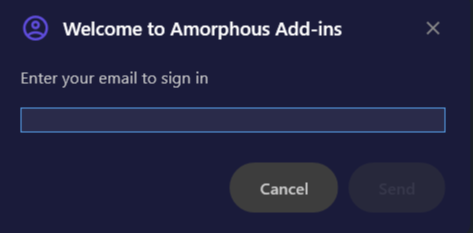
- Enter your email address and click Send
- Check your inbox for a verification email from Amorphous
- Click the link in the email to verify
- The dialog automatically detects verification and signs you in
Returning users: If you’ve signed in before, you’ll be signed in automatically without needing to verify again.
Signing Out
Section titled “Signing Out”- Open Settings
- Click Sign Out
- Confirm when prompted
Offline Access
Section titled “Offline Access”Amorphous supports offline use for a limited time. When you’re online, your access token automatically refreshes each time you start Revit. If you go offline:
- The Settings dialog shows how many days remain before you need to reconnect
- Once the offline period expires, you’ll need an internet connection to sign in again
- The default offline period is 30 days
Privacy & Data
Section titled “Privacy & Data”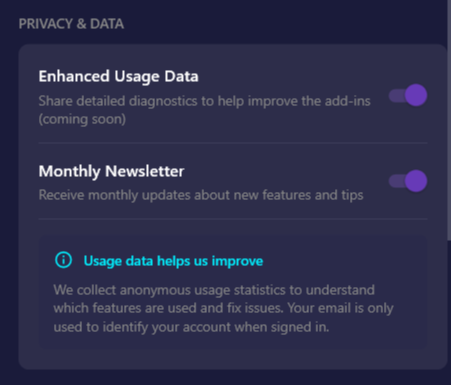
Control how your data is collected and used.
| Setting | Description | Default |
|---|---|---|
| Enhanced Usage Data | Share detailed diagnostics to help improve the add-ins | On |
| Monthly Newsletter | Receive monthly updates about new features and tips | On |
Enhanced Usage Data
Section titled “Enhanced Usage Data”When enabled, anonymous usage statistics help us understand which features are used most and identify issues. This data never includes your project files or personal information beyond your email (when signed in).
Monthly Newsletter
Section titled “Monthly Newsletter”Subscribe to receive monthly emails about:
- New feature announcements
- Tips and best practices
- Product updates
Changes to these settings are saved automatically and synced to the server when online.
Updates
Section titled “Updates”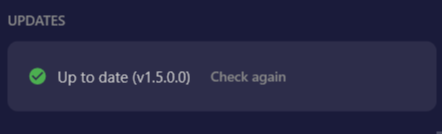
The Settings dialog automatically checks for updates when opened. The Updates section shows your current status:
Update States
Section titled “Update States”| State | Description |
|---|---|
| Checking | Currently checking for updates |
| Up to date | You have the latest version installed |
| Update available | A new version is ready to download |
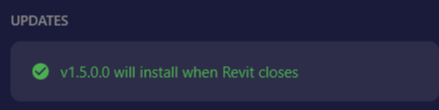
| Update pending | Downloaded and will install when Revit closes |
| Error | Unable to check (click Retry to try again) |
Downloading Updates
Section titled “Downloading Updates”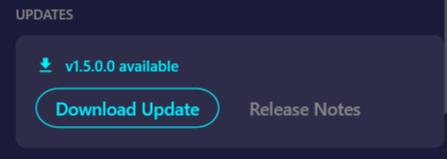
When an update is available:
- The new version number displays in cyan
- Click Download Update to download the installer
- Click Release Notes to view what’s new on GitHub
- After download completes, a confirmation appears
- The update installs automatically when you close Revit
Update Installation
Section titled “Update Installation”Once downloaded, updates install automatically:
- Close Revit normally
- The MSI installer launches automatically
- Follow the installation prompts
- Restart Revit to use the new version
Support
Section titled “Support”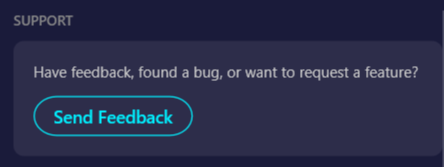
Have feedback, found a bug, or want to request a feature? Click Send Feedback to open the feedback form on the Amorphous website.
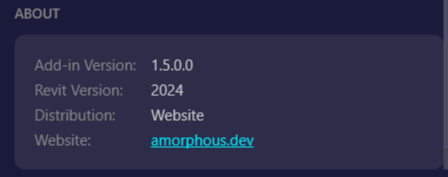
The About section displays technical information:
| Field | Description |
|---|---|
| Add-in Version | Current installed version of Amorphous add-ins |
| Revit Version | The Revit version you’re running (2022-2026) |
| Distribution | How you obtained the software (Website or Autodesk App Store) |
| Website | Link to amorphous.dev |
Keyboard Shortcuts
Section titled “Keyboard Shortcuts”| Key | Action |
|---|---|
ESC | Close the Settings dialog |
- Quick access: The Settings dialog opens from any view in Revit
- Automatic refresh: Your access token refreshes automatically each time you start Revit (when online)
- Update notifications: Open Settings periodically to check for updates, or enable auto-update to be notified
- Multiple machines: Sign in with the same email on multiple computers to sync your preferences
Troubleshooting
Section titled “Troubleshooting””Session expired” message
Section titled “”Session expired” message”This appears when your offline access period has ended. Connect to the internet and sign in again to refresh your access.
Sign in fails
Section titled “Sign in fails”- Verify your email address is spelled correctly
- Check your internet connection
- Try again after a few moments
- Contact support if the issue persists
Didn’t receive verification email
Section titled “Didn’t receive verification email”- Check your spam or junk folder
- Click Resend email in the verification dialog to send a new link
- Verify your email address is correct (click Use different email to re-enter)
- Some email providers may delay delivery. Wait a few minutes and check again
Verification link expired
Section titled “Verification link expired”Verification links expire after 15 minutes for security. Click Resend email in the dialog to receive a fresh link.
Update download stuck
Section titled “Update download stuck”- Close the Settings dialog
- Check your internet connection
- Reopen Settings and try again
- If issues persist, download manually from amorphous.dev
Settings not saving
Section titled “Settings not saving”Settings save automatically to %AppData%\Amorphous\config.json. If settings aren’t persisting:
- Check that Revit has write access to your AppData folder
- Try running Revit as administrator once to create the folder
- Verify the folder exists:
%AppData%\Amorphous\
Related
Section titled “Related”- Preferences - Configure tool-specific settings